

Client Program Configuration
Overview
When to use this feature: You may not even need this functionality. By using Client DLL functionality you may allow access to a selected application from a limited number of client computers.
If a database encrypted without schema protection (only data-at-rest encryption) the functionality isn't required.
Alternatively, you may grant access by login or unlock access programmatically.
Encryption transparency is the key feature of DbDefence. It is possible to apply encryption to the database and make it fully transparent for the 3rd party applications without changing the source code! It works for all kinds of applications: desktop, services and web applications. For example, it can be used to allow SQL Server Management Studio (SSMS) to edit the database after it has been encrypted. However, to do this, there is some preparation work, that must be done beforehand.
DbDefence Client features include:
- Automatic database unlocking for all kinds of applications.
- Can prompt for a password if you do not want to save it.
- SQL query encryption.
- Can be integrated into your application.
It is not necessary to use the client to connect to protected databases. SQL statements can be used to unlock databases. Alternatively you may also permit access to SQL login. (Windows login or a Group)
Adding a program
You can configure an application using Configurator to gain an access to protected databases and unlock them automatically. You do not need to modify the source code of an application at all and it can be done with little computer knowledge. Such an option is provided by DbDefence system drivers and services.
All stored passwords are always hidden and are not exportable.
Suppose we encrypted a database and still wanted to have access to it from our computer as we would an unencrypted database. You would need to run Configurator, go to Client Program Configuration node and add the required application executable. Right click on Client Program Configuration and select "Add Program."

In our case, it is ssms.exe located in "C:\Program Files (x86)\Microsoft SQL Server\11\Tools\Binn\ManagementsStudio\ssms.exe"
Installation
If you need to install Client DLL on a remote computer, do it with the installer. It not only copies the dll, but installs important system components. At the component selection page uncheck all options except the last one as shown on the picture below.

Passwords
You may specify the passwords to be used by all applications without configuring each application separately, and you may specify the passwords to be used by all added applications connected to SQL Server. You may specify several passwords for the same database. When an application is connected to a server, it will try to apply all passwords. Please note that this procedure runs at each connection and may delay connection time for your application. So if you are worried about performance, please, separate passwords for applications and servers.
In the previous screenshot we entered a password for the encrypted database CRMDB to be used only by SSMS.EXE when connected to ANY SQL Server. You may enter several passwords for one database. The application will try it all until the database is unlocked.
After you set up the passwords, click Save. It may take several seconds to store the passwords. After the passwords are saved, the Save button is disabled (it may take several seconds). Now you may start your application as you usually do. As soon as it is connected to the SQL Server, it will apply passwords depending on the configuration.
If you check Show Password Dialog box, the system will check the target SQL Server and show you the dialog only if there are protected databases that are still unopened.
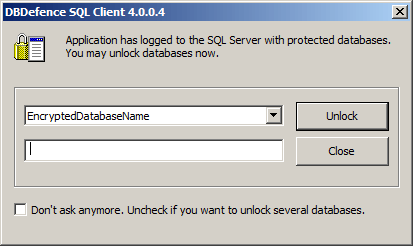
If there are no such databases, the dialog is not shown.
SQL query encryption
When an application is added to the Client Program Configuration, it immediately benefits from SQL query encryption (even if no passwords are required). All textual information traveling from the client to the server is encrypted automatically. If you also want data from the server to the client to be encrypted, you need to setup a reliable SSL connection (see SQL Server documentation). We made this "light encryption" to prevent network tools from sniffing database passwords.
Please note, this is not a complete data-in-motion encryption. It is designed to protect sensitive information in SQL statements even without standard SSL encryption. For better security please setup data-in-motion encryption. This encryption is available for all editions and versions of SQL Server out-of-the-box.
Connection verification
How to check if SQL connection uses encrypted channel and its TLS version ?
To verify that an application uses the client, execute the following query exactly:
---is_dbdefence_protection_on?
or
---is_dbdefense_protection_on?
Under normal circumstances, such a query means only a comment to SQL Server. It does nothing. But if the connection is established with the client, it returns:
a    b
---- ----
Y    1.2

(1 row(s) affected)
Y means that the client is enabled for the application and DbDefence is running on the SQL Server end. Number 1.2 is the encryption version protocol is not really useful to you: you may ignore it.
In some circumstances, it is important to verify the version of TLS (network encryption). SQL Server does not provide such information. You may use the special client dll command:
---dbd_tls_info-------------------------
Under normal circumstances, such a query means only a comment to SQL Server. It does nothing. But if the connection is established over an encrypted protocol, it returns:
v       c
------- ------
TLSv1.2 0xc030

(1 row(s) affected)
"v" is the TLS version. Currently, 1.2 is the latest version considered to be secure. Field "c" contains cipher id. You may find what each cipher corresponds to here.

Integration with your application (for programmers)
The following is useful only if you do not want to add your application with Configurator but want to use the "auto unlock" feature and SQL query encryption.
All mentioned features are provided by a single dll called dbd_clnt.dll. You may find it in the SYSTEM32 and SYSWOW32 folders. When an application makes a connection to the SQL Server, the dbd_clnt.dll intercepts it and does all the work automatically.
You may not configure your application in Configurator, but simply loading the library to your process and has the same effect.
Here is the C# definition:
Define external dll functions:
[DllImport(@"dbd_clnt.dll", EntryPoint = "Initialize", CharSet =
CharSet.Unicode)]
public static extern void Initialize(bool skipdlg);
[DllImport("dbd_clnt.dll", EntryPoint = "AddPassword", CharSet =
CharSet.Unicode)]
public static extern void AddPassword(string db, string
password);
//C++
//void WINAPI Initialize (BOOL skipdlg)
//void WINAPI AddPassword (const wchar_t * database, const wchar_t
* password )
You need to call Initialize once as early as possible before establishing connection to a SQL Server. Initialize (TRUE) skips dialog, or Initialize (FALSE) allows displaying dialog if there are locked databases on the server. Passwords added with AddPassword will be applied to all SQL Servers where the client finds locked databases.