

DbDefence Encryption Tools
Our encryption software uses highly optimized AES encryption routines to take full advantage of the benefits of multiprocessing. You can encrypt using 4 available methods:
- Encryptor GUI
- Command line tool
- Encryption API for C/C++/C# etc.
- SQL command
The Free Version can be used in commercial projects freely. However, the Free Version has a limited database size of up to 30 Mb. Read more about obtaining the full version.
Encryption requirements:
DbDefence encrypts non-system databases of local SQL Servers instances.
Before encrypting any of your databases, it is highly recommended that you create a complete backup of the database to ensure that your data is not lost in the event that there are any problems from the encryption or decryption process.
Encryption options:
You may encrypt a database with or without access restrictions. By default, Encryptor GUI encrypts with access restrictions.
- If you encrypt with restriction access, database files are
encrypted and the database becomes unavailable FOR ALL APPLICATIONS and LOGINS.
You may grant access by:
- If you encrypt without schema protection or masking, database files are encrypted, but they still can be accessed as in a normal database. This mode is similar to Microsoft's TDE.
The encryption process with the GUI
Encryptor GUI encrypts all files within the database including FILESTREAM data. Typical database contain one .mdf file and one .ldf file. However, bigger databases can have several relevant log files and additional data files. DbDefence encrypts each file and each file is given an associated encryption key file. These files need to remain in the same location within the database. Do not delete .dbd_key files!
If you have a UAC enabled operating system (Vista and above) you will get warnings about escalating permissions. Higher access levels for those tools are necessary to modify database files. During the encryption process, the database will be taken offline. So it is important to close all connections to that database. Then, the files will be encrypted and the database brought online.
Note: Please make sure that database files are not encrypted with Windows file encryption. It significantly degrades the performance.
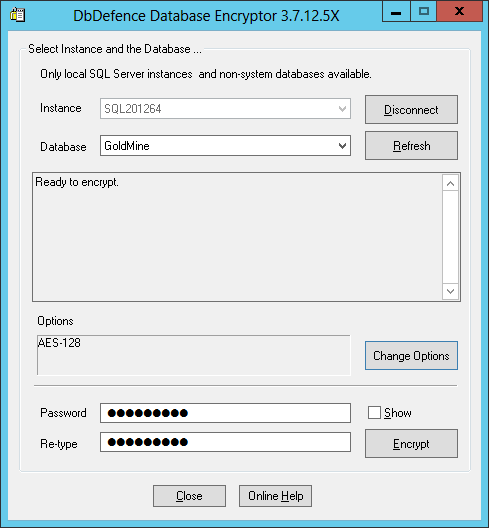
Here is the successful encryption screenshot. As you can see, a small database, several megabytes in size, can be encrypted very quickly.
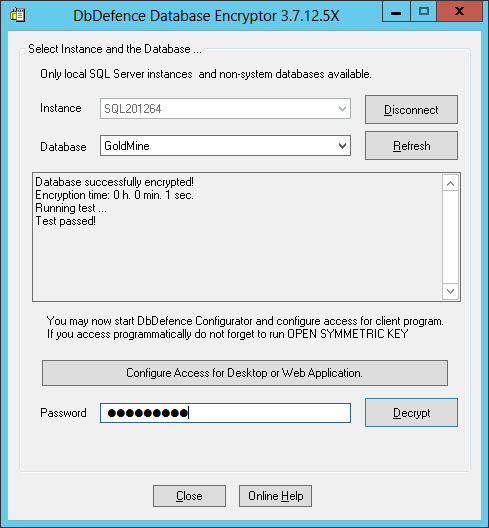
After the encryption, the GUI runs a simple test to ensure database functionality and data protection integrity.
If your database is part of complicated infrastructure, you may want to use exceptions to provide unconditional access to the objects. You can read more about this in the exceptions section of this manual.